REMINDERS · YOUR SCHEDULE
Work break reminders that fit your working day
A useful reminder arrives when you have a realistic chance to act on it. Start with your actual working days and hours, and decide what a small break will look like before the first reminder arrives.
By Pause · KCO Partners LLC · Published September 11, 2026 · Updated September 12, 2026
Part of Workplace stretching, the Pause workplace stretching series.
KEEP IT CLOSE
Your work-break reminder plan
Begin with a cue you can act on: the end of a meeting, a completed task or an optional reminder. Decide on one small break in advance.
Choose your workday
In Pause, open Workday reminders from Home or Settings. Set Start work, Finish work and Working days.
Choose a reminder interval
Select 45, 60 or 90 minutes under Every. Turn on Remind me and tap Save reminders. Optional reminders require Pause Plus and notification permission.
Have a break ready
Put down your work, then choose a comfortable stretch, a breathing break or an easy walk where suitable. If you cannot pause, return at a practical stopping point.
| Interval | First reminder | Last reminder | Per day |
|---|---|---|---|
| 45 min | 9:45 am | 4:30 pm | 10 |
| 60 min | 10 am | 4 pm | 7 |
| 90 min | 10:30 am | 4:30 pm | 5 |
The first reminder is one interval after work starts. The finish time is excluded. These examples describe the app, not a medical recommendation for how often to take breaks. iPhone Focus and notification settings affect delivery.
You can use a calendar cue and the free website guides today.
Full guide: pauseforwork.com/work-break-reminder · Updated September 12, 2026
INSIDE PAUSE
A schedule that belongs to you
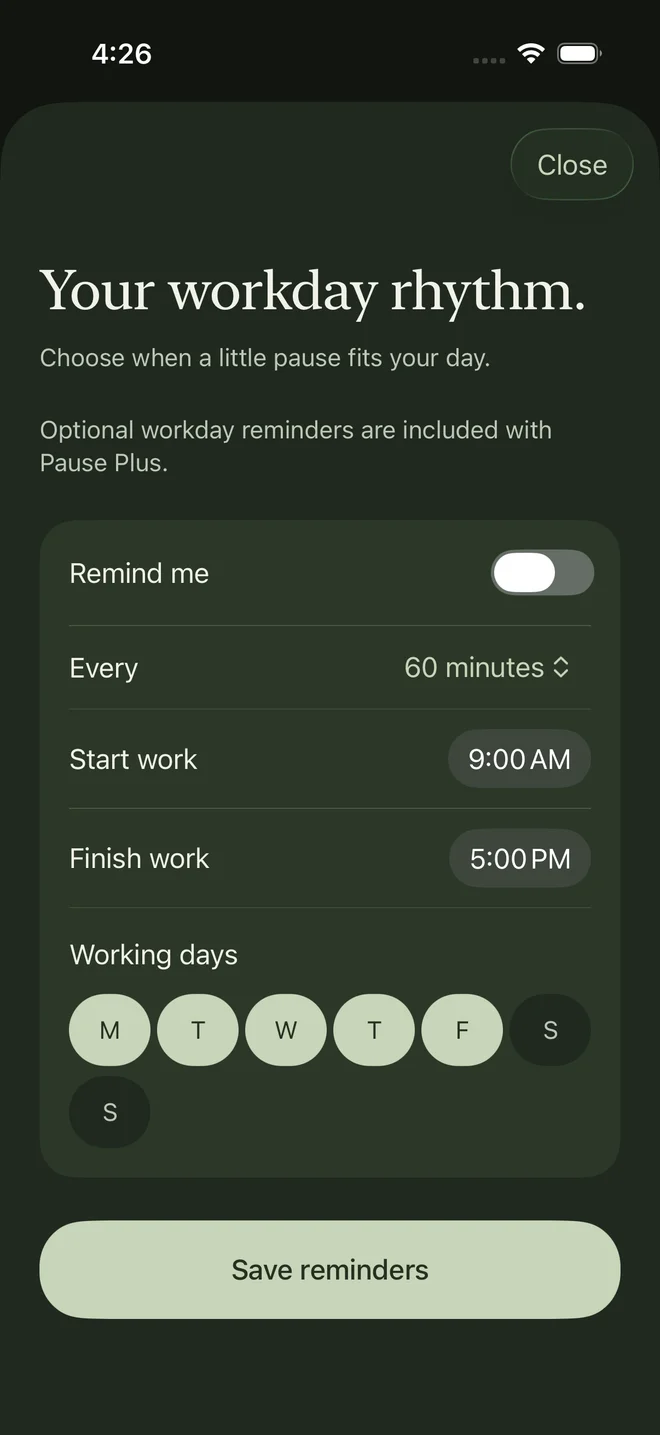
The workday screen keeps the interval, hours and days together. Save changes when you are ready. Reminders are optional and included with Pause Plus.
Start with a cue you already have
You can start today by pairing a break with the end of a call, a completed task or another natural stopping point. If time slips past during focused work, a reminder can provide a separate cue. Choose a pace you can comfortably respond to rather than assuming one interval fits everyone.
A sample schedule, not a prescription
For a 9 am–5 pm workday, Pause’s default hourly schedule begins at 10 am and ends at 4 pm on weekdays. The first reminder is one interval after work begins, and the work-end time is excluded. This is an example of how the app schedules notifications, not medical advice about an ideal break frequency.
Set reminders in Pause
In the iPhone app, open Workday reminders from Home or Settings. Turn on Remind me, choose Every 45, 60 or 90 minutes, set Start work and Finish work, select your Working days, then tap Save reminders. Reminders are optional, silent by default and included with Pause Plus. Pause requests notification permission when you first save an enabled schedule.
If a reminder does not arrive
Check that reminders are on in Pause, that today is a selected working day and that the current time falls inside your schedule. Confirm that you tapped Save reminders, then check Pause’s notification permission in iPhone Settings and your Focus settings. If reminders are enabled and permission is allowed, use Try a reminder in the workday settings. iOS controls delivery; a scheduled reminder is not a guarantee of an immediate alert.
Have one small action ready
When a cue arrives, put down the keyboard and choose a movement, a short walk or a breathing break. If you cannot stop safely or practically, take a break at your next opportunity. Change the schedule if it regularly interrupts the wrong moments; you can also turn reminders off.
Common questions
Does Pause track me for my employer?
No. Pause has no employer dashboard and does not share your movement activity with employers. Reminder scheduling happens locally on your iPhone.
Do I need to allow notifications to use a break?
No. Notifications are optional. You can open Pause and choose a break yourself.
Can I use a computer reminder instead?
A calendar or desktop reminder can serve as a cue, and the guides on this website can be read on a computer. Pause itself is an iPhone app.
General background: Mayo Clinic’s desk stretching guidance and NHS sitting exercises. These sources do not endorse Pause or validate its routines. Product instructions describe Pause’s current iPhone build.